
Before you start
Open this page on the device you will use, if possible
If you are reading this on a computer, send this page to your iPhone or iPad and open it there. Tapping the invitation on the installation device makes the steps much easier to follow.
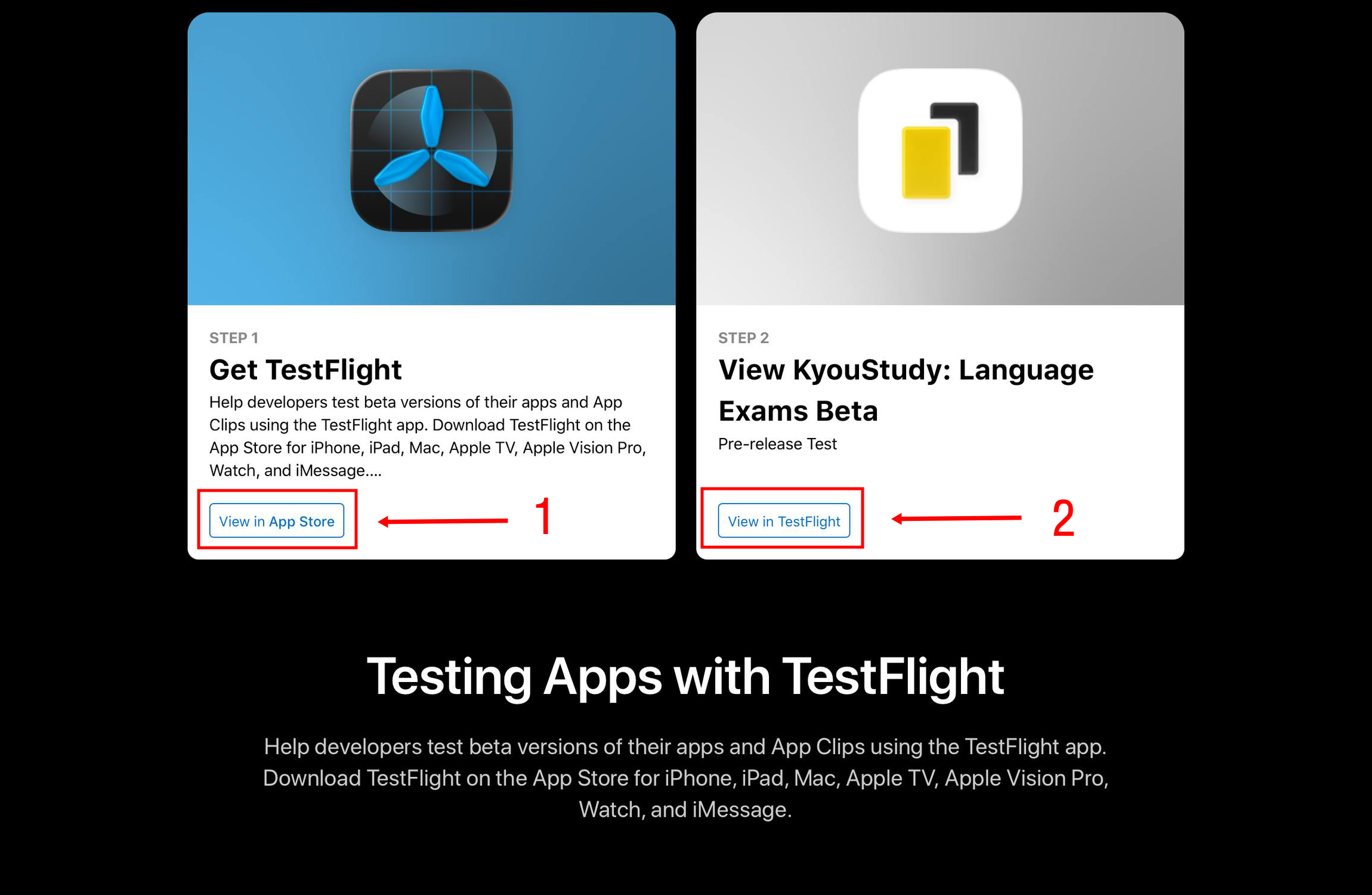
Step by step
Follow these four steps in order
-
Install the TestFlight app first
Press “Open the TestFlight invitation” above. On Apple’s page, press “View in App Store” as shown at ①, then download TestFlight from the App Store. If TestFlight is already installed, skip this step.
You are on track whenThe App Store button says “Open,” or the TestFlight icon appears on your Home Screen.
-
Open the KyouStudy invitation again
After TestFlight finishes installing, return to this guide and press the invitation link again. On Apple’s page, press “View in TestFlight” at ②. If Safari asks to open TestFlight, choose “Open.”
You are on track whenTestFlight displays the “KyouStudy: Language Exams Beta” page.
-
Accept the invitation and install the beta
On the KyouStudy page in TestFlight, press “Accept,” then “Install.” If you see “Install” without “Accept,” simply press it. Keep TestFlight open and wait for the download to finish.
You are on track whenThe installation button changes to “Open.”
-
Open KyouStudy and start testing
Press “Open” to launch KyouStudy. When another test build is available, return to TestFlight and press “Update.” Turning on automatic updates in TestFlight settings makes this easier.
You are on track whenThe KyouStudy start screen opens. You have successfully joined.
Troubleshooting
Do the buttons look different, or will the app not install?
I cannot see “View in TestFlight”
Finish installing TestFlight, then reopen the invitation in Safari. If the link opened inside a messaging app, use its share menu and choose “Open in Safari.”
The invitation says it is unavailable
The test may be full, or the current build may have expired. Try again later. If it continues, email a screenshot to [email protected].
The installation is stuck or very slow
Check Wi‑Fi or mobile data and your available device storage. Fully close TestFlight, reopen it, and press “Install” again; the download will usually resume.
How do I report a bug while using the app?
Email [email protected] with what happened, the steps to reproduce it, your device model, OS version and app version. Include a screenshot of the issue if possible.
Ready to begin?
Open the invitation, then follow ① install TestFlight, ② open the invitation, and ③ Accept and Install.