Before you start
Use the same Google Account in your browser and Play Store
The beta will not appear if the browser that opens the test link and the Play Store on your Android device use different Google Accounts. Tap the profile picture at the top right in both places and compare the email addresses first.
Step by step
Check your account, then follow these four steps
-
Open the link with the Google Account you will use for testing
Press “Open the Google Play test link” above. If asked to sign in, use the same Google Account that is active in the Play Store on your Android device. If you have several accounts, select the correct one from the profile menu at the top right.
You are on track whenYou can see the KyouStudy invitation and a blue “Become a tester” button.
-
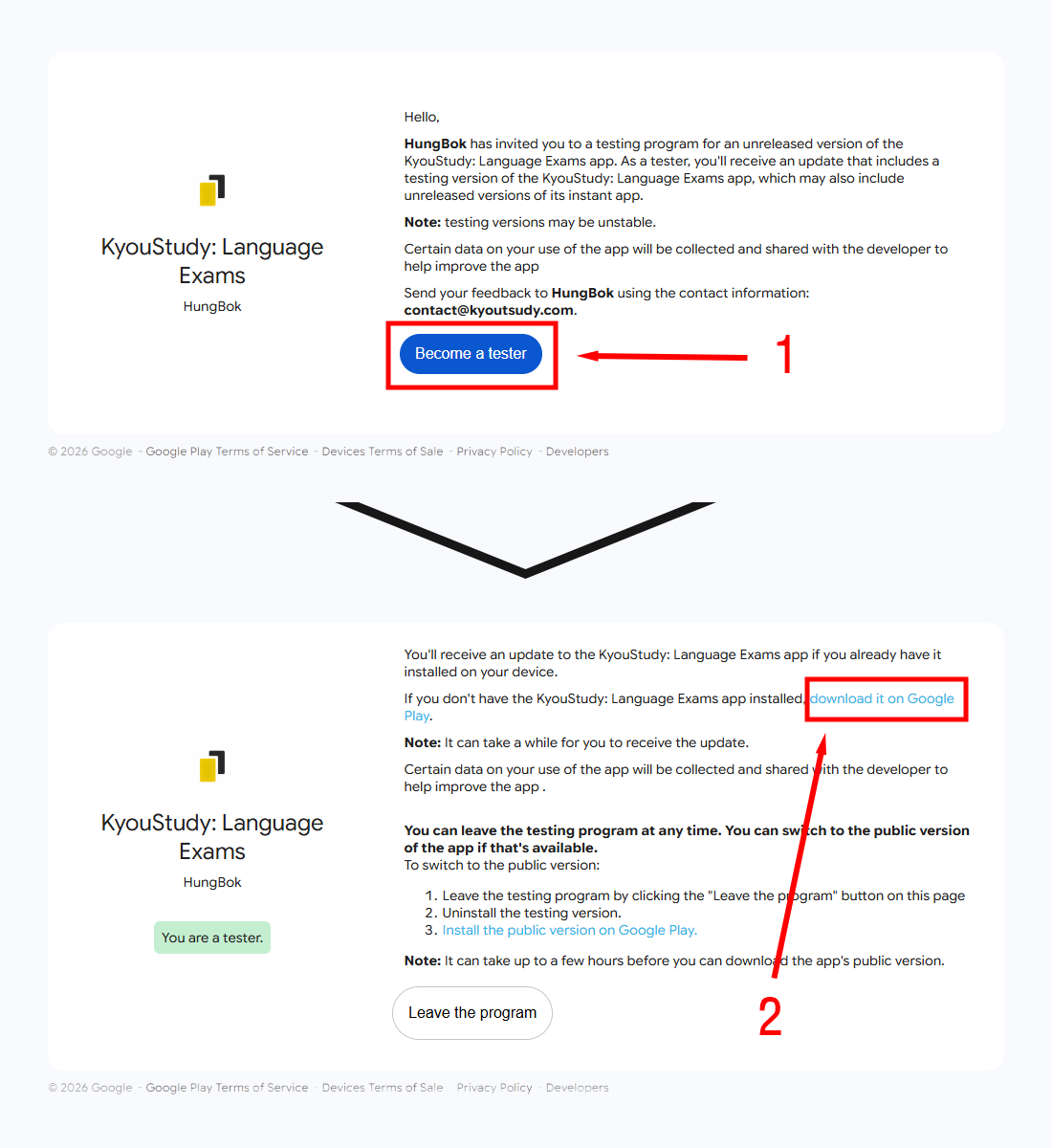
Press “Become a tester” to join
Press the blue button at ① once and wait for the page to change. You do not need to press it repeatedly. Registration is complete when the button is replaced by the green message “You are a tester.”
You are on track whenA green “You are a tester.” message appears below the KyouStudy name.
-
Press the blue Google Play link near the top of the page
In the upper paragraph of the confirmation page, find and press the blue “download it on Google Play” link. If KyouStudy is already installed, you can also open the Play Store directly and search for KyouStudy.
ImportantThe lower “Leave the program” button and “Install the public version on Google Play” link are for leaving the beta. Do not press them while joining.
-
Install or update KyouStudy in the Play Store
On the KyouStudy store page, press “Install.” If you already have the app, press “Update.” Registration can take a few minutes to appear. If you still see only the public version, wait briefly, fully close the Play Store, and open it again.
You are on track whenThe Play Store shows that you are a beta tester and lets you open KyouStudy.
Troubleshooting
Joined, but still cannot see the beta?
Google says I am using a different account
Open the profile at the top right in both your browser and the Play Store, then compare the email addresses. If they differ, reopen the invitation with the account used by the Play Store.
I joined, but there is no “Update” button
Google Play may take several minutes or longer to apply your registration. Wait a little, fully close and reopen the Play Store, then check the KyouStudy page again.
The app is shown as unavailable
This can be caused by device compatibility or regional availability. Email the on-screen message and your device model to [email protected] so we can check.
How do I report a bug while using the app?
Email [email protected] with what happened, the steps to reproduce it, your device model, OS version and app version. Include a screenshot of the issue if possible.
Ready to sign up?
Confirm the Google Account, then follow ① Become a tester, ② the upper blue Google Play link, and ③ Install or Update.